What's new

Welcome to the forum 👋, Visitor

Discover, download, and share the best FiveM scripts and Fivem mods. Find quality scripts, mods, and resources to enhance your FiveM server easily!

How-To [How-to] Optimize texture size | Fixing oversized assets | Bring any texture dictionary under 16 MB physical memory

V.CaptainV.Captain is verified member.

Founder
Staff member
Founder
Joined
Oct 5, 2025
Messages
17
Reaction score
2
This is a tutorial on how to get textures under 16MB uncompressed without too much effort.

What do you need?

  • OpenIV |
    This link is hidden for visitors. Please log in or register to view it.
  • XnResize |
    This link is hidden for visitors. Please log in or register to view it.
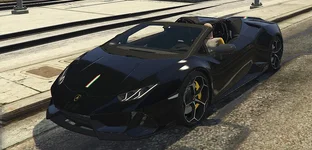
In this tutorial I use the hevo, this is a GTA5-mods vehicle (
This link is hidden for visitors. Please log in or register to view it.
).

When I start the vehicle I get the following message in the console:

1764430978543.webp
166 MB physical memory is more than 10 times as it is supposed to be.


How to make a texture dictionary under 16MB?

1. Open .ytd file in OpenIV
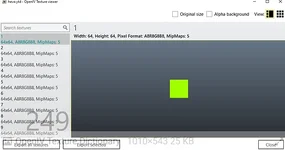
1764430996048.webp
2. Export all textures as .dds | Click Export all textures bottom left of OpenIV
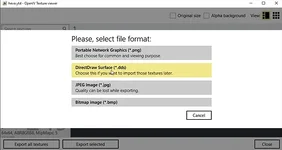
1764431010245.webp
I will export them in a folder inside my vehicle called textures
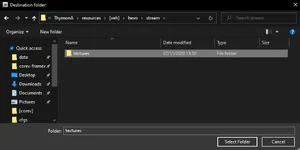
1764431023413.webp

3. Wait until all textures are exported | Bottom left number of items matches OpenIV number of textures from step 1.
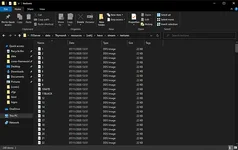
1764431045444.webp
4. Open XnResize

1764431059820.webp
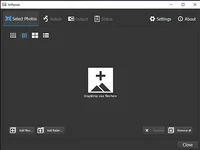
5. Drag all dds files exported by OpenIV and drop them in XnResize
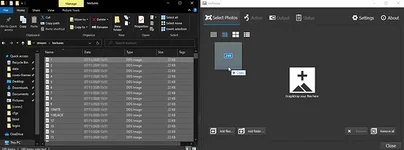
1764431077760.webp

You should now see alle exported dds files in XnResize

1764431100099.webp

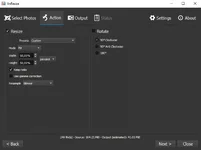
6. Configure XnResize

  1. Configure Aciton tab
  • Set pixels right of Width and Height to percent
  • Set the Width to 50% and Height to 50% (will resize all textures to 50% of there original size)
  • Uncheck Rotate
  • Check Keep ratio
    Screenshot of settings:
1764431122674.webp
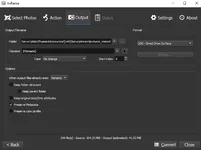
  1. Configure Output tab
  • Set Folder to a destination your prefer (I created a second folder called textures_resized under textures in vehicle resource)
  • Change Format to DDS - Direct Draw Surface
    Screenshot of settings:
 

Attachments

  • 1764431030174.webp
    1764431030174.webp
    9.8 KB · Views: 0
1764431196748.webp
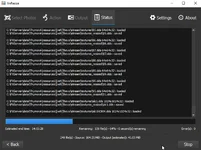
7. Press Convert in XnResize

1764431211648.webp
After a couple of seconds XnResize is finsihed and you will see a small report like:

1764431231471.webp
8. Delete now the existing texture dictionary we are fixing (hevo.ytd)

9. Create a new texture dictionary in OpenIV with the same name as we deleted in step 8
1764431249556.webp
1764431259915.webp
Give it the same name as the texture dictionary we deleted

1764431276711.webp

10.
Open our new Texture dictionary and press the Import button
import button


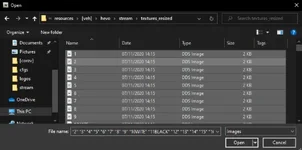
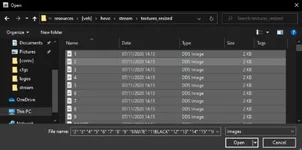
11. Select all dds files from the folder you have given in step 6.2 (set Folder) and press Open
1764431291760.webp

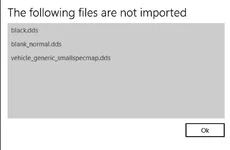
12. Fixing The following files are not imported
Some dds files aren’t importable after resizing in XnResize, we will use then the original files exported in step 2, press ok and import those original files

1764431316155.webp

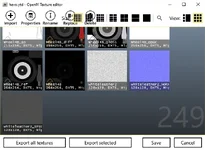
13. Save our new Texture dictionary by pressing Save
save


1764431328683.webp


Now we have reduce the size of our Texture Dictionary
 

Attachments

  • 1764431301777.webp
    1764431301777.webp
    13.9 KB · Views: 0
1764431421137.webp
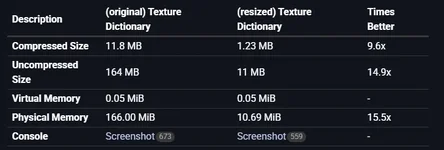
Our resized texture dictionary is almost 10% of its original compressed size and 6.5% in game’s Physical Memory, overall is our texture dictionary 10 times better

14. Final results (screenshots)

1764431437265.webp
Troubleshooting

  • My textures are glitching:
    It is possible that textures will glitch when they are resized to 50%. Do not resize them but leave it in the original size (100% instead of 50%). If these textures still glitch, replace them with the original .dds file.
  • Quality is disappointing:
    You can always replace a texture back with the original .dds file, try to resize as many files as possible using XnResize. If you have a car with e.g. liveries and the quality is disappointing, put the original liveries in XnResize and don’t adjust the size (keep 100%). If the quality is still disappointing, replace it with the original .dds file (NOTE: can increase the file size again).
Keep in mind that this is a way to reduce textures more easily and optimize your server. Textures can lose quality or change their appearance. First try to convert the file again but don’t change the size, If it remain bad, then replace it with the original file.
 

Theme customization system

You can customize some areas of the forum theme from this menu.

  • Wide/Narrow view

    You can control a structure that you can use to use your theme wide or narrow.

    Grid view forum list

    You can control the layout of the forum list in a grid or ordinary listing style structure.

    Picture grid mode

    You can control the structure where you can open/close images in the grid forum list.

    Close sidebar

    You can get rid of the crowded view in the forum by closing the sidebar.

    Fixed sidebar

    You can make it more useful and easier to access by pinning the sidebar.

    Close radius

    You can use the radius at the corners of the blocks according to your taste by closing/opening it.

  • Choose the color combination that reflects your taste
    Background images
    Color gradient backgrounds
Back